

I wrote an article back in 2013 titled “How To Create A Webpage Using Notpad”. I was using Notepad to create a website. I began thinking, “I wonder if people know how easy it is to create a webpage with notepad?” So I wrote an article about it. I was writing on Hubpages at the time. I was pleasantly surprised to learn that a lot of readers found the article helpful!
As time march’s on, and methods progress, I found myself drawn to Visual Basic Code. I could create a webpage just like I had been doing with Notepad, but faster, easier, better. Visual Basic Code is like Notepad on Steroids! You’re not going to believe how easy it is to create a webpage in Visual Studio Code!
From here on out I’m going to refer to Visual Basic Code as VBC.
Back in the day, when working with Notepad to create a webpage,, because, it was all we had available,, every time we created a page there was the “must have or it won’t work” boilerplate of <!DOCTYPE html> blah blah blah. And the opening brackets and the closing brackets, over and over. Well, with VBC you don’t have to do all that anymore! VBC does it for you automatically!
Be sure to check out the *Helpful Hints”.
This is so cool, you’re going to love this! Grab a fresh cup of coffee, or soda, and clear a little space on your desk.. We’re about to dive into something exciting!
Visual Basic Code Download
When I decided to work with VBC I originally went with the download. I was not happy with it at all. I’m on a Chromebook, so I have Linux running. When I downloaded VBC somehow it planted itself right in the way of Linux reading my files. All my files suddenly could not be accessed. I went into a cold sweat, I had a book in there! I tried various commands to get around ithe blockage VBC had created. Nothing worked, so I had to remove it from my system,. Once I did that everything worked fine and my files were accessible again.
Visual Basic Code Online
After my freak out from downloading VBC and my files going all wonky, I went with the online version instead. It runs in a “sandbox.” It doesn’t install anything on your system. You can open a single folder from your computer to work on your HTML, and it only sees that one folder.
It’s the full professional power of VBC, but it lives entirely in your browser. It’s safe, it’s fast, and it won’t clutter up your hard drive. Let’s head over there and I’ll show you around.
Let’s Get Started
*Helpful Hint (Important): I want to make sure we all understand that there IS a difference between a File and a Folder.
Before we head out to the VBC website we need to create a folder on your computer and save it to your desktop. I’m working on a Chromebook. On a Chromebook click that little bullseye on the bottom left, then click on the files icon. Windows, I believe, if you right click on the bottom menu bar it puts up the options for Desktop you click on. On your desktop, right click anywhere and a menu pops up. There is a Folder option, click that and save it to the desktop. On Chromebook, when the files open, at the top right-click on the three dots. In the drop-down click Create Folder. Name it “My First Webpage” or whatever you will remember. Press Enter
Now we should all have an empty Folder on our desktop. We can head over to your browser and type in the address bar vscode.dev
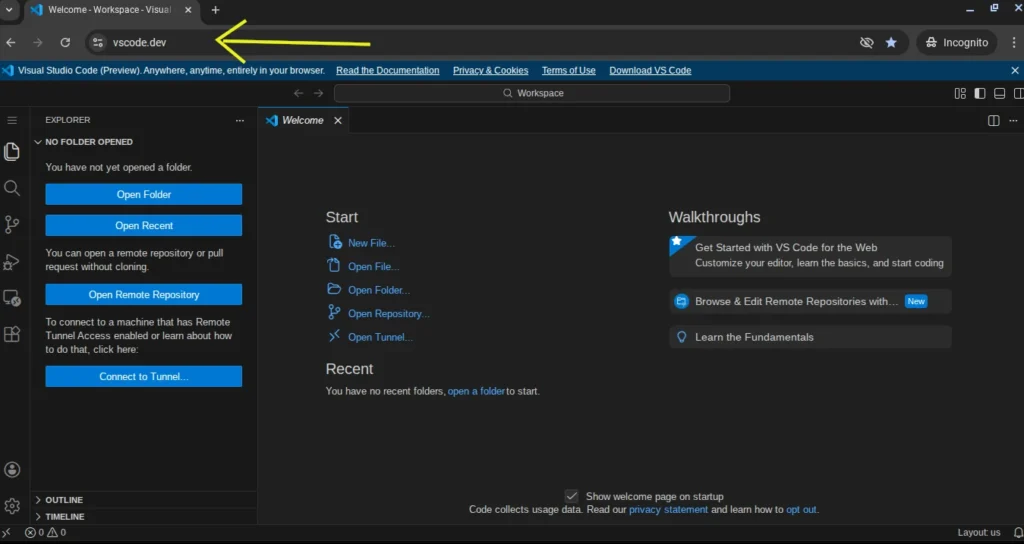
Don”t worry, it may look intimidating but there’s only a couple of things we need to click on. Isn’t it pleasing to the eye, blue on black background? That’s what you want with your webpage, pleasing to the visitor.
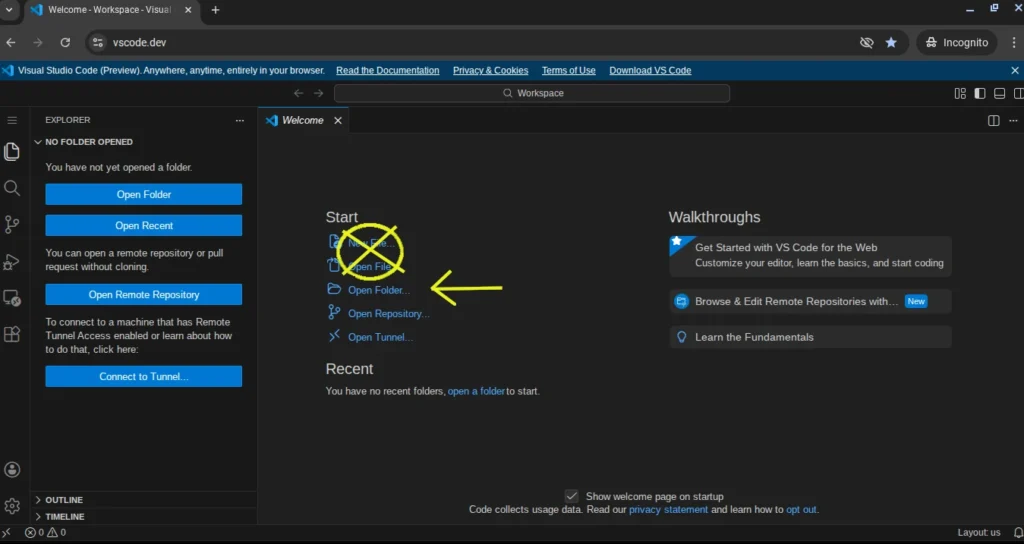
Now we need to go get that folder we just created on your desktop.
Click on the Open Folder option right there in the near middle of the screen. Not file, we want Folder. We are asking VBC to open the Folder we just created and saved to our desktop.
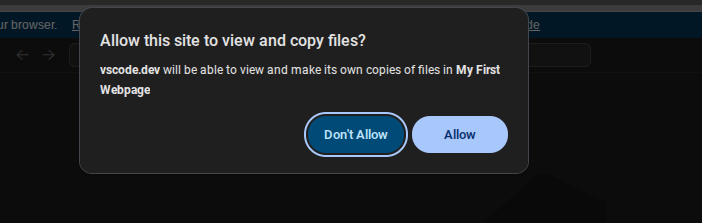
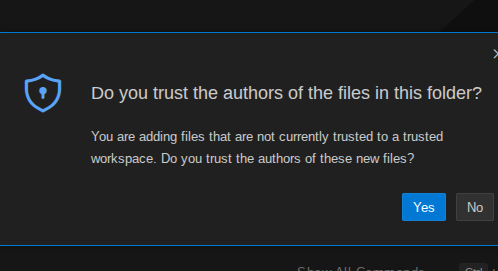
Pop up windows are going to ask you for permission to view the file,; yes. There might be another permission question and do you trust this file? (of course you do it’s yours!)
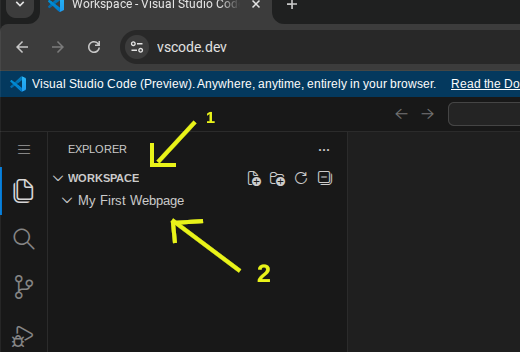
VBC opens your Folder and sets it up for you to start writing your code in it!
Creating Your HTML In VBC
Helpful Hint: If you have trouble seeing the screen on VCB, on your keyboard hold Ctrl and tap the “+” sign and the screen will enlarge.
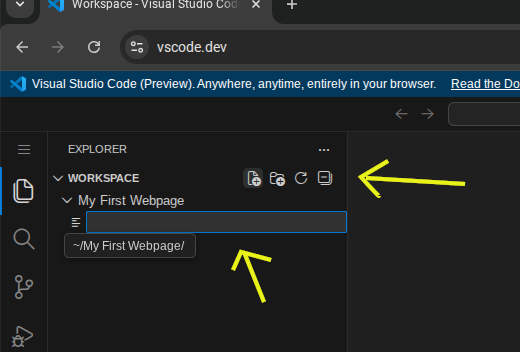
We have our folder on VBC, now we want to create a file to go into that folder. To open a file in our folder you slide your mouse to your folder icon on VCB and a menu will appear to the right. The options are as tiny as a thimble. Enlarge your screen as noted above if you need to. You want to click on the one that looks like a piece of paper with a “+” on it.
When you select it a bar will appear for you to name the file. You can name it anything that you will remember is the index. It must have the .HTML at the end like this: Index.html
Entering Code To Your HTML Index
*Helpful Hint: Enter an exclamation point “!” and press “tab” and VBC will fill in the boilerplate for you! It’s called the Emmet’s Magic.
Your cursor should be blinking on the screen to the right of a number 1. It’s waiting for you to start coding. Enter ! and press tab. Voila! Your boilerplate is done for you! VBC just saved you 5-10 minutes of redundant coding! We can start writing the other parts of our code.
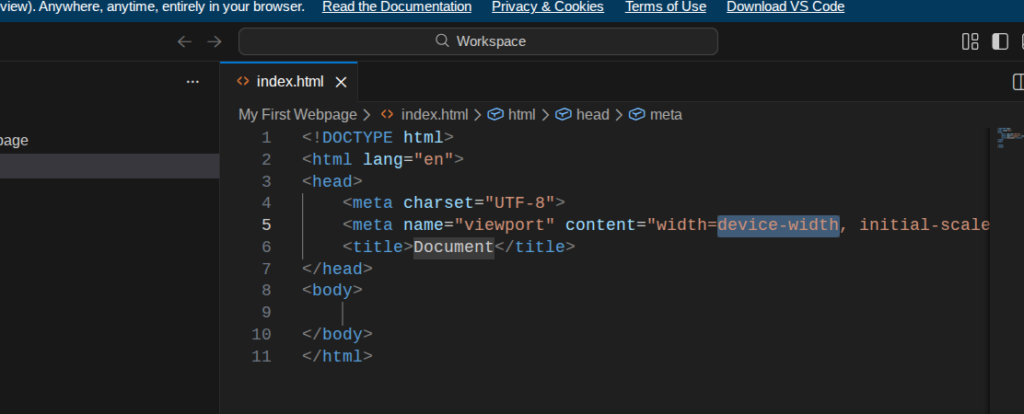
Let’s type something on our webpage. These words will show up on your webpage because we are putting them between the <body></body> tags. We want this part to be the Heading of the page so, move your cursor below the first <body>. It should be around line 9. Type <h1>Take Me To Your Leader! Did you see that?! It automatically entered the closing </h1> for us!! You’ll never have to check your code again for a missing closing tag again!
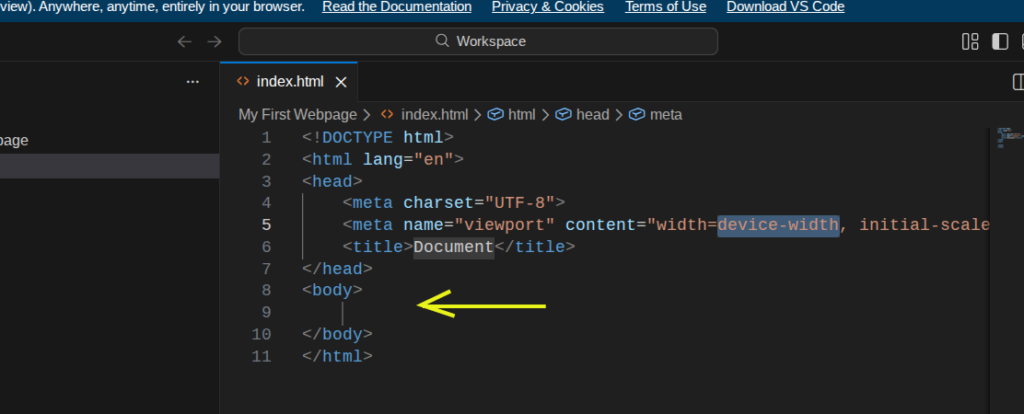
Place your cursor here to type your <h1> title</h1>
You can type whatever you want for the header. I chose “Take Me To Your Leader”. You can type “Hello”, or “My Name Is Jethro”. Whatever you want. Don’t put the parenthesis(” “) in there or they will appear on your webpage.
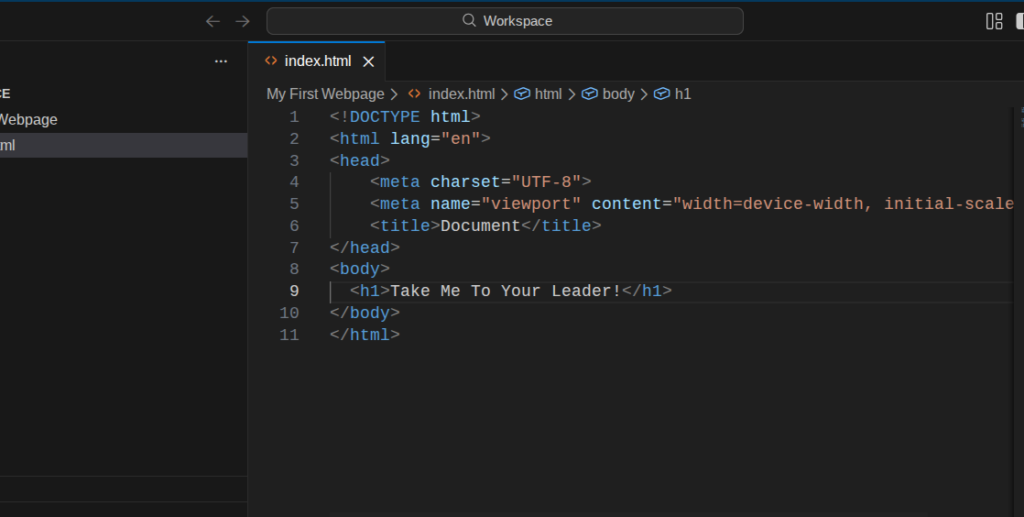
*Helpful Hint: You don’t have to put the closing </h1> in there anymore. VBC does it for you!
Let’s Check It Out!
On the left side of your screen towards the top there are 3 bars stacked on top of each other. Click on them. Slide your cursor over to File, then click on Save.
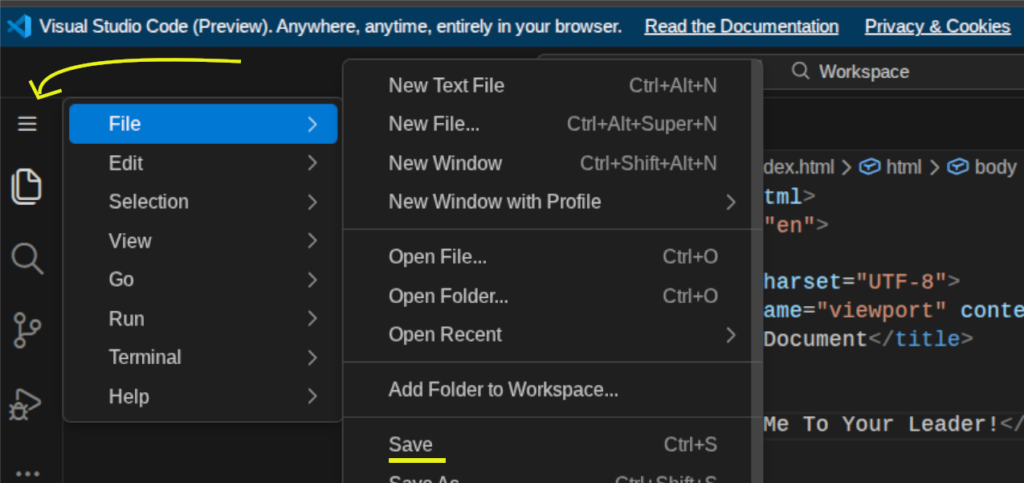
Now click over to your desktop. Either with the bar at the bottom of your screen or ctrl+ tab .
*Hepful Hint: The keyboard short-cut “ctrl + tab” cycles through your open screens every time you click tab.
On your desktop click on your Folder “My First Webpage” and double-click on the index.html file inside.
AND….
Bam! Your webpage!! VBC automatically opened your webpage in your browser because you told it to when you saved it as an HTML document. Notepad was fun in it’s time, but Visual Basic Code is way better!
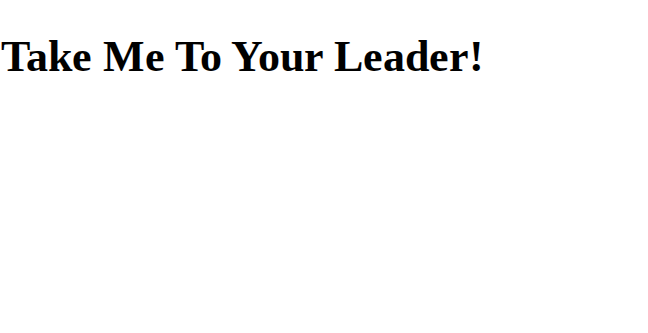
This is just the beginning my coding friend! Leave this folder on your desktop. We’ll put some fun titles into it and fancy copy! next time!!!