


This is a follow up to the previous post “How To Build Your Next Webpage With Visual Studio“. You’ll be better prepared for this post if you read that post first.
We ended the other post on “How To Build Your Next Webpage With Visual Studio”with a simple “Take Me To Your Leader!” title element. We had saved it as “index.html” file in the folder on your desktop named “My First Webpage”. Today we’re going to use Visual Basic Code to manipulate the HTML in the index.html file.
Let’s Jump Right Into This And Write Our Title!
Go ahead and open the website vscode.dev in your browser, then open the Folder we worked on last.
*Helpful Hint: Do you remember how to open the Folder? Not a problem: Type the website into your browser, or click the link above. When the VBC website opens, click on the 3 bars in the top left corner of the page. Slide your cursor over the word File and another menu will come up. Select Open Folder. VBC will open your Folders. Navigate to your “My First Webpage” folder. Click on it.
Everything is just as we left it last time. It’s ready for us to mark it up!
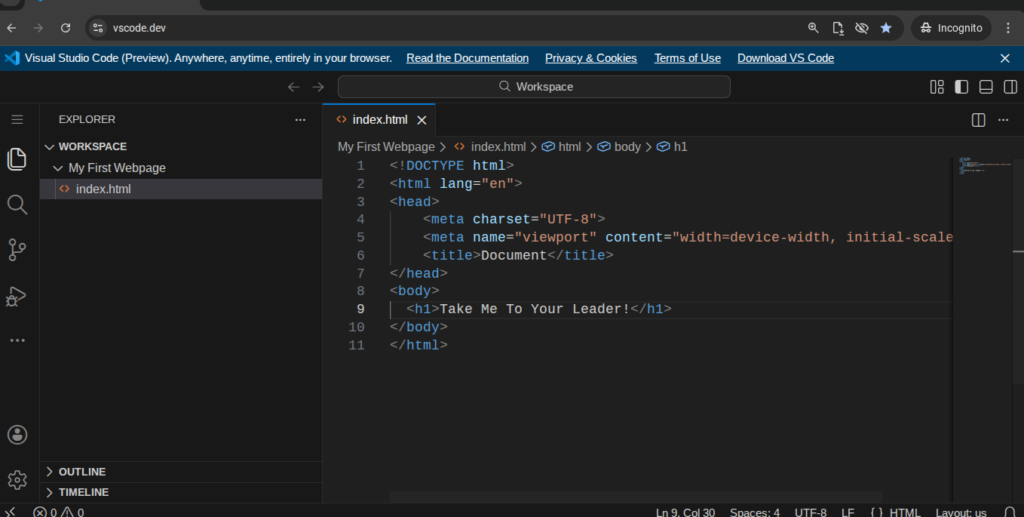
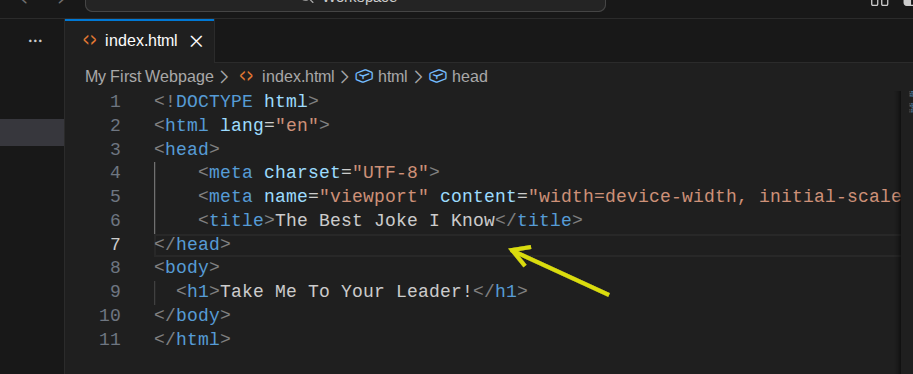
Can you find the title tag? It sits at line 6 or there about. We don’t want our page to be called “Document” right! Place your cursor right in there where the word “Document” is. Delete the word “Document” and type in your own title. I want mine to say “The Best Joke I Know”. Type your title in there.
Helpful Hint: Whatever you choose to type in the title area is what will display on the browser tab, but not on your webpage.
Let’s Put Some Content On Our Webpage
Question: The <title> tag you just created. Will your title appear on the screen when you open it in your browser? (Answer is at the bottom of the post).
It’s time to put some content on our webpage! Move your cursor down to the end of the <h1> row. After the closing </h1> tag. In other words; the end of line 9. Click return. Your cursor should have created a new line, line 10. The closing </body> tag is on the line below your cursor, so you are within the opening <body> and the closing </body> tags.
*Helpful Hint:: The content you want displayed on your webpage must be entered between the opening <body> tag and the closing </body>.
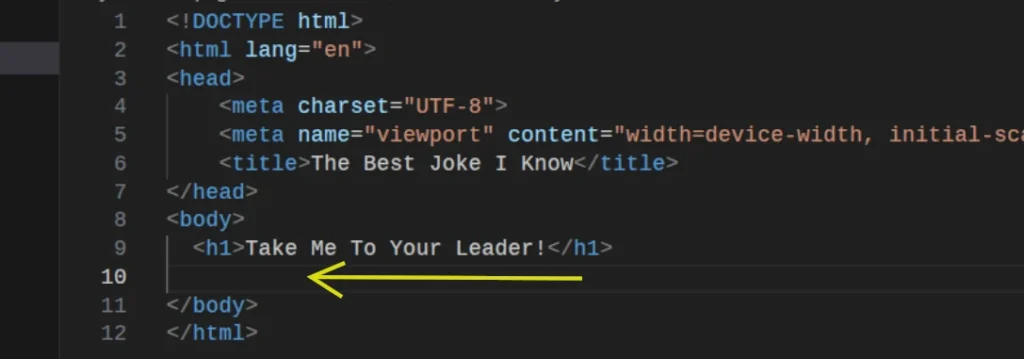
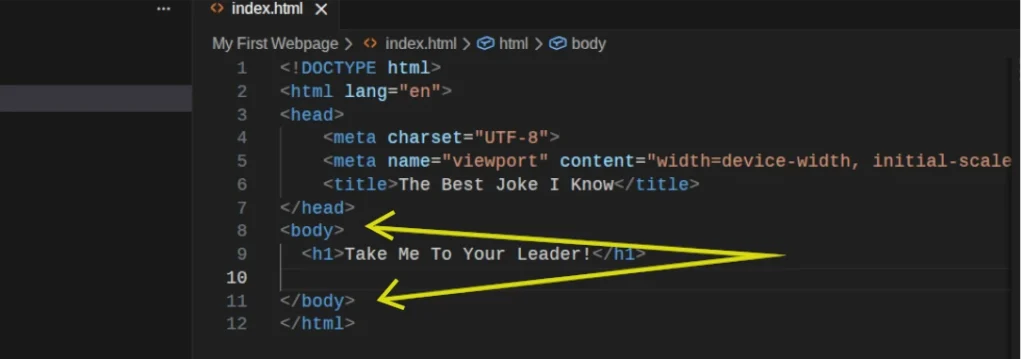
On line 10 type <p> . A closing </p> will automatically be entered. Make sure your cursor is between the <p> and the </p> and fill in the content you want to appear on your webpage. I’m going to enter my alien joke. You can copy mine or come up with your own. As you’re entering you text enter a return when the words are about to scroll off-screen.
If your words do scroll off screen, there is a bar at the bottom of the window that you can slide the window over to see the rest of the text. For what we are doing here it is a little easier to have it all on our screen in front of us. This way it is easier to read and work with. On your webpage it will be printed all the way across the screen.
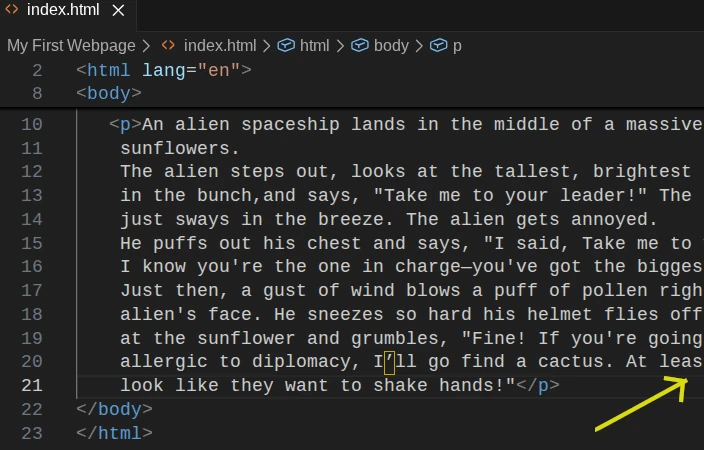
You should have something similar to the photo below. Your <p> content may differ from mine, but the rest should look the same.
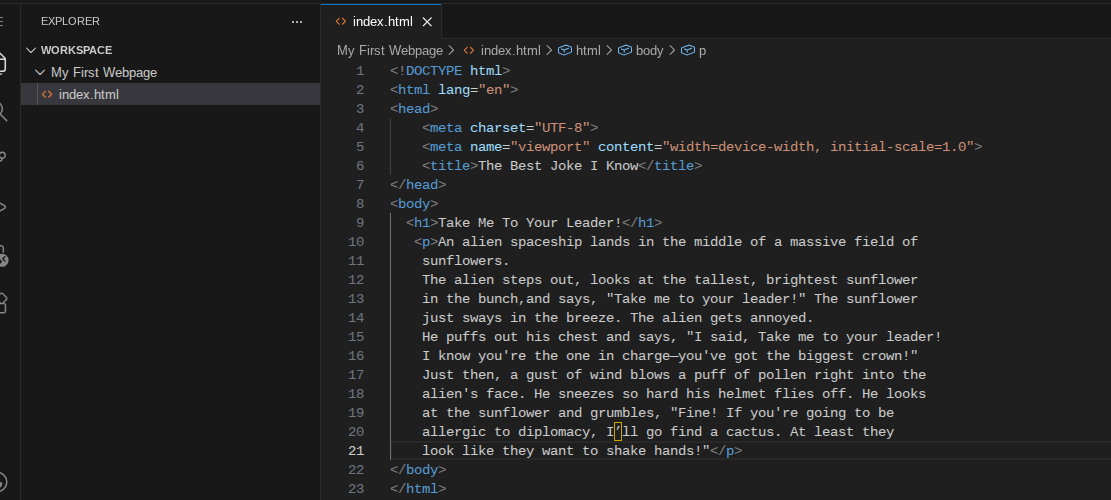
Finish Up Your Coding Today
To finish up your coding today Save what we’ve worked on just like we did before:
- Move your cursor to the top left side of the page where the 3 bars are. Click on them.
- Slide over the word File and another menu presents itself.
- Scroll down and click on Save. VBC will save it to the folder we’ve been working in.
Check It Out Live!
- Open your desktop.
- Locate your “My First Webpage” folder and click on it.
- Double click your index.html file and……
VOILA!! There’s your webpage with your content! That is so cool!!
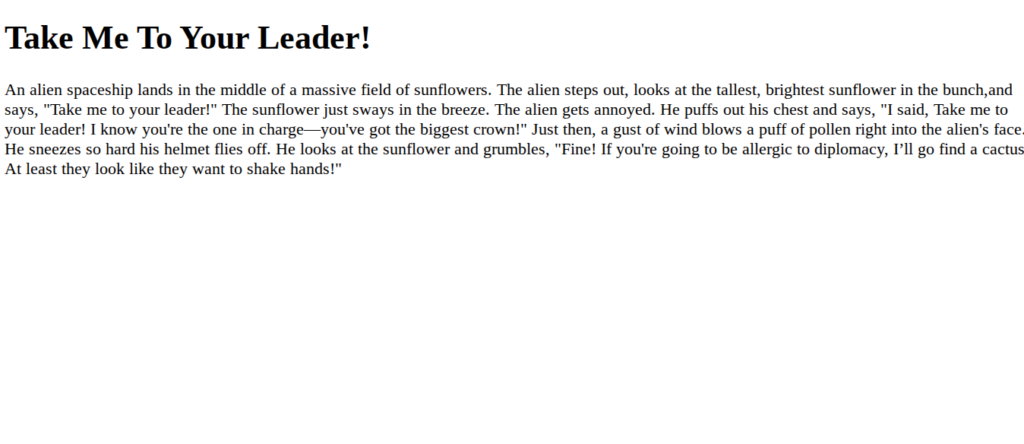
Answer: No. The words between the <title></title> tags do not appear on the screen. They will appear on the browser tab.
Next post, adding CSS code!